The latest visual Blogger's post editor is still lacking the "Insert Table" option. Adding this option (for example, like the one available in the Google Sites's editor of the page content) would be quite useful for the users, especially those how are unfamiliar with HTML coding. Until this option is added (if ever), the only way to insert a table in a Blogger post is trough the HTML Editor. But, writing manually an appropriate HTML code for a table, can be a tedious, time consuming task, even for simple tables like these:
Tables with borders
Tables without borders
| 1x4 table |
|
6x1
table |
|
|
|
|
|
|
|
|
|
|
|
|
| 3x4 table |
|
|
|
|
|
|
|
|
|
|
|
|
|
|
|
|
|
|
|
|
Using Tables for Arranging Images
Adding two or more images in a Blogger post that are nicely aligned, using only the "Insert Image" option, can be quite frustrating. The solution is: create an appropriate table which will serve as a placeholder for those images.
First of all, make sure that the outer width the of desired arrangement will not exceed the width of the post text (as in Figure 1).
| post text width |
|
outer width of the arrangement |
|
|
image 1 |
image
6 |
image
8 |
|
|
|
|
image
2 |
image
3 |
|
|
image
4 |
image
5 |
image
7 |
|
| Figure 1 |
If the outer width of the arrangement approximately equals the post text width, which is the same for every post, or if you don't mind if the whole group of images is aligned at left, then you may skip the Step 1.
Step #1: Adding the initial code in the HTML editor in the Blogger's post editor
If the outer width of the arrangement is less then the post text width, then it would be nice if the whole group of images is centered. Open the HTML editor, add a few empty lines below the text where you what to place the a group of images and, copy and paste the following code:
<table style="text-align: center; width: 99%; margin-left: auto; margin-right: auto;"
border="0" cellpadding="2" cellspacing="2">
<tbody>
<tr>
<td style="vertical-align: top;">
INNER TABLE
<br>
</td>
</tr>
</tbody>
</table>
The visible result after Step #1:
Tip #1: Replace, if necessary
- the value 99 in 99% with a smaller one (or replace 99% with, for example, 500px, 650px - the values expressed in % do not function well in some browsers); for the basic example that follows, this value is 90%
- the value 0 in border="0" with 1, 2 or more if you want a visible outer border for the whole group of images
- top with middle or bottom
Step #2: Generating the code for the INNER TABLE
The Basic Example
Here is a group of six images, all with same width and height, arranged in
2 rows and
3 columns.
|
Note: Each image is placed in cell of a table with 2 rows and 3 columns. A tiny, light-grey colored border with a shadow should be visible around every image in the above group. But these borders are not borders of any of the used tables. They are automatically added around every image in all off the posts in this blog. If you are using a Blogger template, go to: Blogger's Template Designer >> Advanced >> Images to see these settings. |
In this step, still working in the HTML editor, the text INNER TABLE was replaced with the following code:
<table style="text-align: center; margin-left: auto; margin-right: auto;">
<tr>
<td>IMAGE 1</td>
<td>IMAGE 2</td>
<td>IMAGE 3</td>
</tr>
<tr>
<td>IMAGE 4</td>
<td>IMAGE 5</td>
<td>IMAGE 6</td>
</tr>
</table>
The visible result after Step #2:
| IMAGE1 |
IMAGE2 |
IMAGE3 |
| IMAGE4 |
IMAGE5 |
IMAGE6 |
|
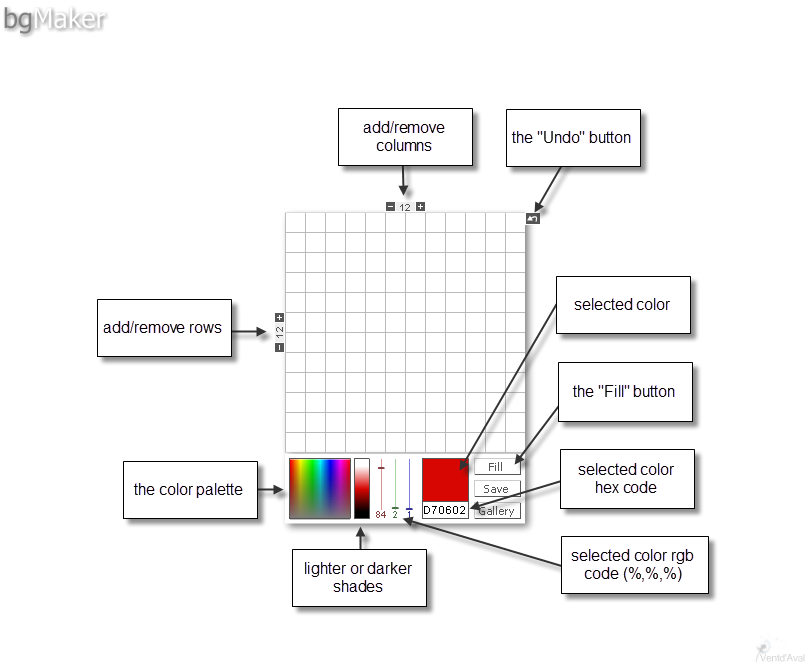
The above code, with the exception of description style="text-align: center; margin-left: auto; margin-right: auto;" , was generated with one of the simplest online HTML code generators: Multitoolbox's Table generator and editor.
Of course, instead IMAGE1, IMAGE2, etc, you can enter any text.
Step #3: Adding the images
The Basic Example - continued
Now, working inside the visual editor or inside the HTML editor, select IMAGE1 and click on the "Insert Image" icon to add the image that you want to appear instead of IMAGE1. Repeat this for IMAGE2, IMAGE3, etc. If you haven't used this option before, follow this
elementary tutorial.
Other simple online HTML table code generators
Here is an example of a group of four images arranged in one row.
The Code for INNER TABLE:
<table>
<tr>
<td>IMAGE1</td>
<td>IMAGE2</td>
<td>IMAGE3</td>
<td>IMAGE4</td>
</tr>
</table>