Pages

Showing posts with label backgrounds. Show all posts

Tuesday, May 8, 2012

Creating Patterns and Backgrounds with COLOURlovers

Another free (the lite version) online patterns editor/generator, similar to the PatternCooler's advanced editor is available at COLOURlovers.

If you've never stumbled upon this website before, then I suggest that you first visit the pattern gallery. By clicking on any of the patterns you'll be redirected to a page where you can
  • browse for similar patterns to the one that you've chosen, or
  • color this pattern with different colors (up to five, depending on the pattern) by clicking on the small rectangles that appear below the pattern and selecting a new color from the color picker that will pop-up. 
recoloring a pattern

Alternatively, you can browse the seamless pattern template gallery and, after selecting a pattern template, you can recolor it as described above.

Another cool feature of this online pattern generator is that you can create (for free) your own seamless pattern template with the Seamless Lite pattern template creator.

creating a pattern template

You can use shapes from different sets of shapes, draw lines, create layers. Each shape can be re-sized, rotated, re-positioned and, if you don't like you can remove it.

If you want to save a pattern template or a pattern that you've recolored, then you have create an account. Each time you have to name your creation. This will serve as a key word for finding it. To find all of the patterns or pattern templates you've created, in the search form, in the "Lover" field, just type the username that you've used. Leave everything else blank.

After choosing the pattern, or a pattern template for further coloring

coloring the pattern template

to download the final result, look on the right side and click on "Preview".


Your pattern will be opened in new window. Then right-click and "Save image as...".

Note: You don't have to create an account if you want to download a pattern that found in the gallery.

Have fun!!!

Creating Striped Patterns and Backgrounds

Stripes are very often used as a website backgrounds. Beside the bgMaker and PatternCooler (the advanced editor) there are two other, free, online, striped patterns generators that can produce nice stripes.

Stripes generator 2.0

Generates horizontal, vertical and diagonal stripes (4 different angles), with or without shadows. You can create a striped pattern with stripes colored with up to five different colors (not including the color of the patterns background), all with a user defined width form 1px to 50px, and spacing with width form 1px to 50px (this can be different from the width of the stripes). Of course, to get inspired, you can visit the Gallery. You can also download the striped pattern as a PNG file.


Multitoolbox's Stripe Generator

Generates horizontal, vertical and diagonal stripes (2 different angles). You can create a striped pattern with stripes colored with almost arbitrary number of different colors (not including the color of the patterns background), all with a user defined width form 1px to 100px, and spacing also with width form 1px to 100px (this can be different from the width of the stripes). You can download the striped pattern as a PNG file.

Saturday, May 5, 2012

Tartan Pattern Online Generators


What is Tartan?


A repeating pattern, originally used in woven wool and, usually, associated with Scotland (in particular, the famous Scottish kilts).

Each tartan consists of crisscrossed horizontal and vertical (square tartan) or diagonal (diamond tartan) of different colored stripes, bands and/or lines.

For more information on tartans see, for example:

For web design and graphic design beginners, there are few nice, easy to use free online tartan patterns generators. Below is a list of those that I've tested so far.

Square Tartan


Diamond Tartan

Nick Wedd's Tartan Pattern Generator

This tartan pattern generator contains a huge collection of predefined tartan patterns, divided in six different sets of patterns. Each tartan pattern is listed by it's name and can be modified in many ways. Before using this tartan pattern generator, reed the associated  Help on the Tartan Generator.

Nick Wedd's Tartan Pattern Generator
Each pattern can be downloaded as PNG, JPG or GIF file.

TartanMaker

This free online tartan pattern generator is much more simpler to use. You can create and download
  • square or diamond tartan patterns in three different yarn sizes
  • patterns consisting of up to 10 different bands (stripes) (to add a band click on the some of the "+" buttons)
  • each band can be: a) colored with a different color; b) of a size on a scale between 1 (which, for the yarn size of 1, approximately equals 2 pixels) and 10.
TartanMaker


To get inspired, check the gallery of user created tartan patterns.

Tartan Designer (by Tartan Web)

Another cool online tartan pattern generator is the Tartan Designer from Tartan Web. So far, I've been able only to create some nice tartan patterns. I don't know if there is an option to download the created pattern (to save it - whatever that means, you must register first). I've tried the "Email Tartan" option, but without any success. However, it's worth trying it.


Multitoolbox's Tartan Generator

This is another simple to use, free online tartan pattern generator. You can create and download
  • square or diamond tartan patterns
  • patterns consisting of up to 11 different bands
  • each band can be: a) colored with a different color (the color picker works only by dragging the small circle stated in the left upper corner in the colored window that appears when click on the hex code of the corresponding band); b) of a size on scale from 1 (which is approximately equal to 2 pixels) to 100 (to modify the band width, you have to drag the slider of the corresponding band).
Multitoolbox's Tartan Generator

To get inspired, click the "Inspiration button".

Have fun creating tartan patterns.

Creating Patterns and Backgrounds with PatternCooler (Part 2)

PatternCooler has another pattern and background editor, named Pattern Spread App, with far more advanced features. Follow this link to directly access this editor.

The Welcome Screen of the Pattern Spread App    

Here is list of some of the options available in the advanced editor:
  • creating images with arbitrary width and height
  • each image can be created from one or more layers of patterns (one pattern per layer)
  • adding or removing patterns (upon adding you can even select groups of patterns)
  • adding amazing multicolored linear, circular or elliptical gradients to each layer (the background layer or the pattern layer) 
  • each of the selected/added patterns, even when added as a group, can be individually scaled almost arbitrarily (have in mind that the editor is still in its beta version and the smaller sizes are not so arbitrarily)
  • downloading the created images in SVG, PDF, PNG or JPG file (the SVG file format is recommended for those who have some experience with Inkscape or Adobe Illustrator).
Here is an example of an image I have created with Pattern Spread App:


Get inspired by visiting the Gallery!

Friday, May 4, 2012

Creating Patterns and Backgrounds with PatternCooler (Part 1)

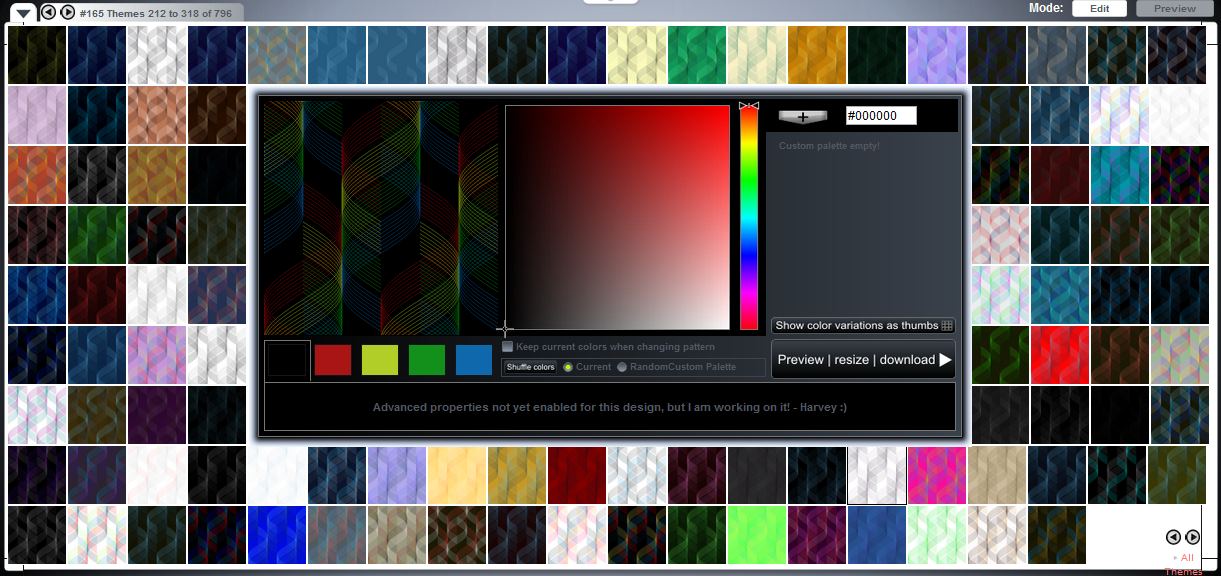
PatternCooler, developed by Harvey Rayner, is another great free online pattern and background generator to start with. The basic editor

PatternCooler's Basic Editor

offers
  • 207 different predefined patterns (each with same and equal width and height)
  • 5 different sizes for each pattern (you can choose between 25%, 50%, 100%, 150% and 200% of the original size) 
  • hundreds of color variations for most of the predefined patterns, the number of color variations depends on the chosen pattern and, for some off them, this number rises up to several thousands color variations (one of the largest number of color variations I've stumbled upon was 5351)    
  • each color variation is a set of 2, 3, 4, 5 or 6 different colors and each of these colors can be individually customized with a color picker.

An example of color variations for randomly selected pattern

After selecting the desired pattern, to access all color variations click on the "Show color variations as thumbs" button. The selected pattern will then be surrounded with all or the first 106 color variations, if the number of all color variations for the selected pattern is greater the 106. You can get the next (or previous) set by clicking on the arrow buttons in the lower right corner of the editor.

Below the selected pattern there are few (2 to 6) rectangles, usually colored with different colors. They represent the selected color variation which can be modified by clicking on each of these rectangle and picking a color from the color palette in the middle (or editing the hex code in the upper right corner).

It only remains to choose the size of the created pattern and it's ready to be downloaded.


Enjoy!     

Creating Patterns and Backgrounds with BgPatterns

Another, simple to use, free online pattern generator is BgPatterns. Although it has a limited number of features in comparison with bgMaker, you can still create beautiful repeatable patterns.

When you open the editor in your browser, the first thing that you'll see is a small gallery of images that are to be used in the creating process.

BgPatterns Editor (click to enlarge)

Choose an image, set the image opacity, the image location on the canvas and the image size. To preview your initial setting, click on the eye icon. Then navigate to the color palette under "Colors".

The Color Editor (click to enlarge)

You can pick any color that you like as a foreground (i.e. the color of the image that you have previously chosen) or as a background color (i.e. the color of the canvas).

Under the "Canvas" tab you have an option to choose from five different canvases. You can also re-size the canvas. By default, the canvas sizes (both width and height) are equal, measured in pixels, and if you want a canvas that has different width and height, first click on the small lock icon right above the dimensions, and then put any number for the width and height. You also have an option for setting the texture opacity (measured in %).

The Canvas Editor (click to enlarge)

Finally, under the "Rotation" tab, you have the option for rotating the image (not the canvas), by dragging the rounded button along the bigger circle in clockwise or counterclockwise direction.

Rotating The Image  (click to enlarge)   

After creating the background pattern, click the download button and the pattern will be downloaded in PNG format.

Have fun!

Thursday, May 3, 2012

Creating Patterns and Backgrounds with bgMaker

If don’t you have experience with some kind of image editing software and you want to make some simple, eye-catching backgrounds, then bgMaker is an ideal tool to start with. This free online pattern/background generator works like a pixel editor with an instant preview of your design. You can create stunning backgrounds in few minutes.

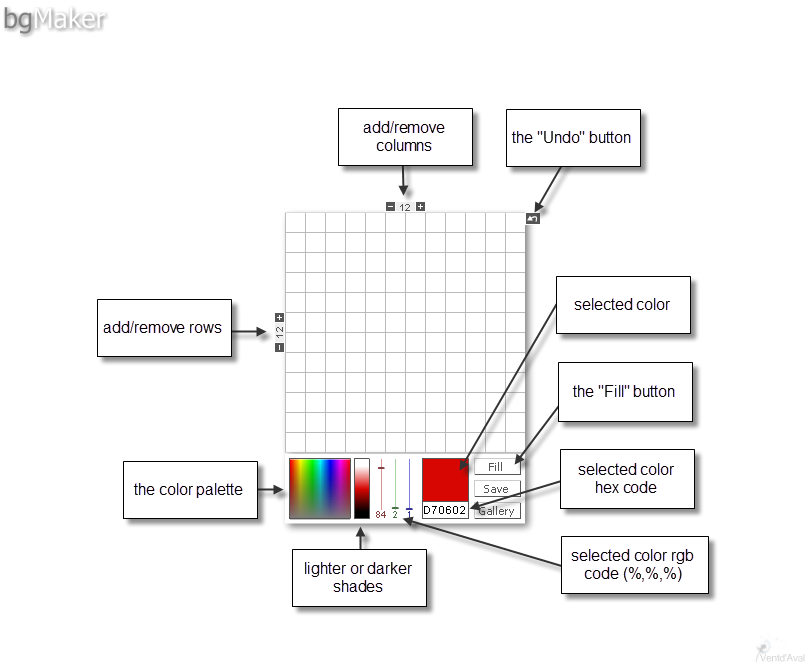
Overview of the bgMaker Editor (click to enlarge)

The editor is quite simple. By default, you will see 12x12 grid. Each square in the grid represents a pixel. You can add an extra row of pixels by clicking on the plus sign on the left side of the grid. To remove a row of pixels, click on the minus sign on the left side of the grid. To add or remove a column of pixels click on the corresponding sign above the grid. Be aware that the editor adds rows at bottom and columns on the right side of the grid. The same goes for removing rows and columns. You can create a pattern with up to 99 rows or columns of pixels. Instead of clicking on the plus or minus signs, you can click between the signs and replace the number 12 with any number between 1 and 99.

Creating a Pattern/Background - Simple Example


Pick a color from the color palette in the left corner (to start, just click on the any color). Alternatively, you can edit the hexadecimal code for the desired color. Use the “Fill” button to fill the whole area with a single color. Below is the fill result for color with hex code DB99CD for 9x9 pixels pattern.

(click to enlarge)

Let’s pick a darker shade of the same color by clicking on the rectangle right next to the color palette (notice that both the hex code and the numbers for rgb percent have automatically changed). Then click on each square in the grid along the diagonal, starting from the upper left to the lower right. You should have a result like this one:

(click to enlarge)


If you repeat this with the opposite diagonal, you will get this result:

(click to enlarge)

Now, suppose that you want to use some of the colors that you've used before but you don’t know which shade (or the hexadecimal code) you've used. Never mind, bgMaker has a feature similar to a color picker. To do this, click on the area that indicates the selected color and move over the editor. The small hand should change in cross-shaped pointer. Click on the square that’s colored with the desired shade and once again you can work with a color that’s already used

After creating the final version of your pattern click on the “Save” button. The pattern you’ve created will be downloaded to your computer. This pattern will also be saved in the bgMaker’s Gallery. You can access the Gallery, which contains more than 244500 user created patterns, via the “Gallery” button. You can view, edit and download (in PNG format) any pattern in the Gallery.